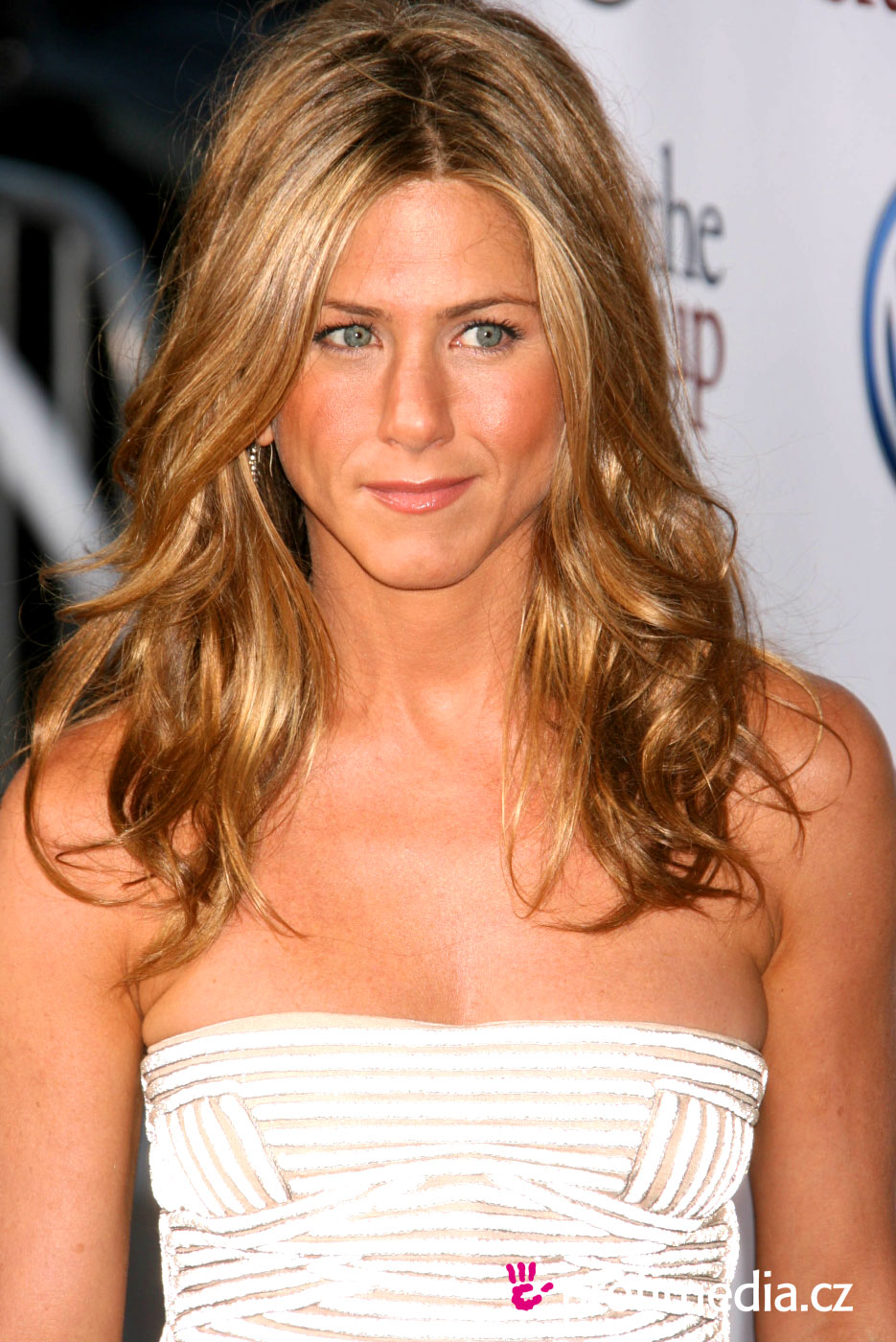
Before After


To add original color to a black and white image:
Step 1: Open Image.
Step 2: Make image black and white by opening Adjustments panel and clicking the Black and White button.
Step 3: Select the History Brush from the Tool Palette.
Step 4: Start coloring the items that you want to add the original color to.
To make a cork board background:
Step 1: Open a new blank document.
Step 2: Make a new layer and name it "Cork".
Step 3: Fill the layer with a tan color.
Step 4: Add Noise by going to Filter, Noise, Add Noise, and check the Monochromatic Box.
Step 5: Go to Filter, Pixelate, and Crystallize.
Step 6: Duplicate the "Cork" layer and name it "Edges".
Step 7: Add texture by going to Filter, Stylize, and Find Edges.
Step 8: Duplicate the "Edges" layer and name it "Reticulation".
Step 9: Filter, Sketch, Reticulation, and make the Opacity 25%. (May use Hue and Saturation to color the cork).
Step 10: Add a Merged Visible Layer by holding Ctrl+Alt+Shift+N+E keys.
Step 11: Go to Filter, Noise, Add Noise, and make it 6%.
Making the frame around cork:
Step 1: Add new layer and name it "Frame".
Step 2: Use the Rectangular Marquee tool to make a smaller section for the cut out of the frame.
Step 3: Press the Delete key to delete the cork from the frame.
Step 4: Go to Filter, Noise, Add Noise, and make it 20%.
Step 5: Select the Polygonal Lasso tool. Then click at the inner top left corner, then inner right corner, then double click to the outer left corner. Hold down the Shift button and do the same to the bottom corner.
Step 6: Go to Filter, Blur, Motion Blur, make the angle 0 degrees, and the distance 30.
Hope this was helpful!
Here are other websites to help you: