Friday, March 23, 2012

Softball Flash Banner

>
In the past class, I have created a Flash ad banner that is for the Mercy Academy Softball team. It shows how much of a family we are and it is to help recruit players. To create this I took a photo that is owned by my family and put it on Photoshop. In Photoshop, I used tools such as adjustments, hue/saturation, color balance, and text. I edited my picture and put different effects on it so it would add more sentimental value.

After I had finished editing in Photoshop, I opened Flash and imported the picture to the stae. Once it was imported, I aligned it to make it in the center of the layer. After a few minor steps, I eventually made my picture into a new movie clip symbol. Then, I used tools such as the selection, free transform, filters, and color effects. When all was said and done, I had created a classic tween and once I played the clip, it was exactly how I wanted it.

Enjoy!


Monday, December 5, 2011

SplAshiNg COloR 101

We have been working with Photoshop in computer class for quite a while now. So this week when our teacher told us that we would be making our own tutorials for Photoshop, it did not seem like an impossible task. We worked in groups for this assignment and my partner and I chose a photograph from our Walk-a-Thon. This picture has a dominant color of yellow because that is our class color and everyone wears it on this day. We thought it would be a great idea to put this picture in black and white and then only bring back some of our yellow accents. Then we wanted to do more to the photo so we put it on a cork board and added a frame. This blog entry is dedicated to our tutorial with Photoshop.
Before                                                                          After
To add original color to a black and white image:
Step 1: Open Image.
Step 2: Make image black and white by opening Adjustments panel and clicking the Black and White button.
Step 3: Select the History Brush from the Tool Palette.
Step 4: Start coloring the items that you want to add the original color to.

To make a cork board background:
Step 1: Open a new blank document.
Step 2: Make a new layer and name it "Cork".
Step 3: Fill the layer with a tan color.
Step 4: Add Noise by going to Filter, Noise, Add Noise, and check the Monochromatic Box.
Step 5: Go to Filter, Pixelate, and Crystallize.
Step 6: Duplicate the "Cork" layer and name it "Edges".
Step 7: Add texture by going to Filter, Stylize, and Find Edges.
Step 8: Duplicate the "Edges" layer and name it "Reticulation".
Step 9: Filter, Sketch, Reticulation, and make the Opacity 25%. (May use Hue and Saturation to color the cork).
Step 10: Add a Merged Visible Layer by holding Ctrl+Alt+Shift+N+E keys.
Step 11: Go to Filter, Noise, Add Noise, and make it 6%.

Making the frame around cork:
Step 1: Add new layer and name it "Frame".
Step 2: Use the Rectangular Marquee tool to make a smaller section for the cut out of the frame.
Step 3: Press the Delete key to delete the cork from the frame.
Step 4: Go to Filter, Noise, Add Noise, and make it 20%.
Step 5: Select the Polygonal Lasso tool. Then click at the inner top left corner, then inner right corner, then double click to the outer left corner. Hold down the Shift button and do the same to the bottom corner.
Step 6: Go to Filter, Blur, Motion Blur, make the angle 0 degrees, and the distance 30.


Hope this was helpful!

Here are other websites to help you:


Tuesday, November 22, 2011

Every Logo Needs An Ad

You may have seen my previous blog with a logo on it for my family. I have recently created an advertisement based off of my logo. The ad is for a family reunion. On the ad, I put when and where the reunion would take place. I tried to keep the ad short and concise that way it is easier to read. I used multiple tools such as the shape tool for the pointed objects on the background. I also used the dragging tool to get the logo straight from my other blog picture that way the logo would be identical. Before I used the dragging tool, I first used the lasso tool to grab all of the text that I wanted to use. I used the paint bucket tool to fill in the colors on the background, the distort tool to wave the title, and the text tool to apply all of the text, of course. I made many mistakes from experiencing with the paint brush to draw different pictures, so the eraser tool came in handy and was very helpful. I used the eye dropper tool to get the colors to match perfectly. For my picture of the group of people I used the crop tool several times to make the picture fit correctly. Below is my finished advertisement. 

Tuesday, November 15, 2011

Family Logo

Throughout the last couple class periods I have been creating a logo. Now, due to the fact that I am not very creative I could not think of any type of organizations or clubs to make a logo for, so as a result, I made a logo for my family. Below you will see my final product.
This logo represents my family of five. Each family member is represented with blue or brown eyes, dark or light hair, and to help decipher which girl is which in my family, the dresses are that girl's favorite color. By using the shape tool, I put a Fleur de Lis in the middle of my family's nickname. I used this shape because we live in Louisville and that is our city symbol. I made the text red and the shape black because we are die hard Louisville Cardinal fans. Also using the shape tool, I added the background shapes because I thought that the shape just sort of said "BOOM!" this is the Ratterman family. I decided to go with the gray background because even though we are an extremely loud family, we still have our calm and quiet days, and the gray just says "Hi, it's time to relax and have a lazy day."

Thanks for reading! Check back for more(:

Tuesday, October 25, 2011

Media-Shop

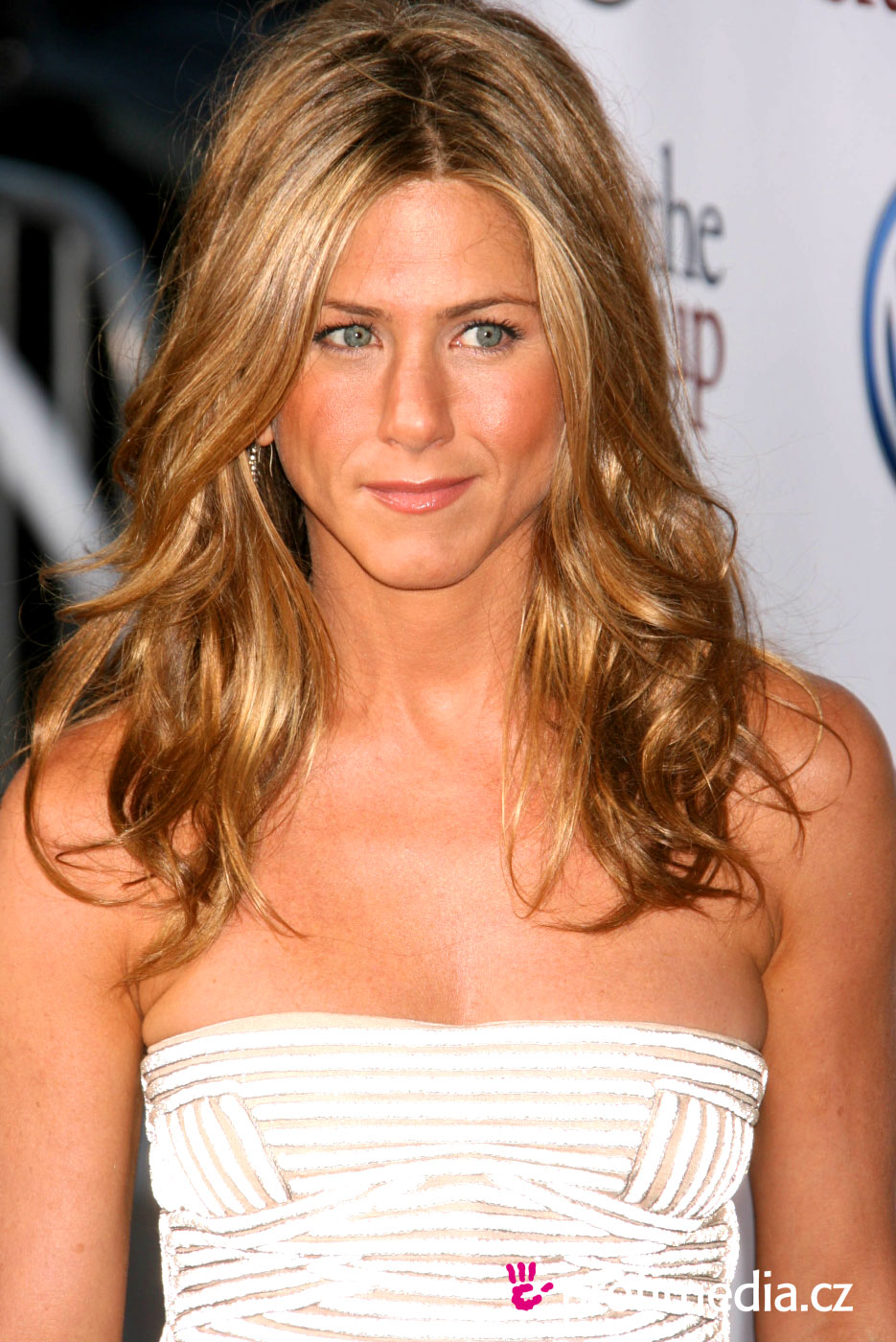
Have you ever wondered how celebrities look beautiful in every magazine ad? All i have to say is one word: Photoshop. After working on a project for a week, I have finally come to the conclusion that there is no such thing as the perfect body image because it is all fake thanks to this program. I used my personal picture and transformed myself to look like Jennifer Aniston. Here is my before picture:
After using many tools on Photoshop, I merged my face onto Jennifer Aniston's. Here is my after picture:

I feel as if the picture came out much better than I thought it would. It just goes to show people that anyone can transform images and make them look perfect. Everyone tries to look like celebrities, but in all reality, celebrities don't even look like that! No one does.
I think that I applied the eye shadow and mascara very well, but I believe I could improve on the actual color of my face and the matching of my color to Aniston's color because parts of the face are not blended well together. Other than a few minor changes that could have been made after a little practice, I think this picture resembles something that would be shown in the media because of all the touch-ups.

Thanks for reading! Keep checking in for more blogs(:

Monday, October 10, 2011

A Day in the Life of Me


Throughout two class periods, I worked on making a collage that depicts a day in the life of a Mercy student. I wanted the collage to be bright and colorful because each day is full of happiness and joy. I used a number of tools on Photoshop such as the cropping tool, the hue/ saturation tool, black and white, gradient map, selective color, and the magic wand. Those are just some of the main tools that I used while making this project. I wanted to create the collage centered around the Mercy crest because I believe that it helps Mercy students remember how fortunate we are that we are able to receive a Catholic education. When I was taking the pictures to use in the collage, I kept in mind to avoid mergers. One element of photography that I used was simplicity in which I took the picture of the Crucifix.  

Photoshop is a great program to use when dealing with pictures and it is fun to mess around with all the different tools. It is an exploration of technology that opens your imagination above and beyond regular editing.


Sunday, September 25, 2011

Do You Know the Elements?

When most people take pictures, they don't take into consideration the different elements that a picture can have. Three elements that I use are simplicity, the rule of thirds, and avoiding mergers. Below are examples of these three elements.
In this picture of my almost-3-year old maltese named Mercy, I use the element of simplicity because all you can mainly see are her eyes and nose. The picture is a close up that allows you to only see parts of her cute little face. This picture is simple yet still has character.

This picture may seem odd, but I used the rule of thirds to take this. The element allows you to focus the attention to a few certain areas. These shoes symbolize my everyday life. The shoes that are bigger and closer to the front show the biggest parts of my life which are school and work. The pair of shoes that are in the very back symbolize my most time-consuming part of life which is sports. Using a grid to take a picture helps to focus the attention which is what I had hoped to accomplish in this picture.

The last but certainly not least of the elements that I used is avoiding mergers. By making sure that your background is mainly a solid background, you can easily avoid mergers. The picture on the left shows how to not avoid mergers. My dog looks as if she has cords and part of a table growing off of her. Now in the picture on the right, I placed my dog in front of a chair that is one pattern instead of a bunch of different backgrounds.

 I hope that I have answered any questions about elements of a picture! Enjoy the art of picture taking!